Click or drag
Upscale factor
Enlarge Images Without Losing Quality
Professional-grade picture upscaling service that enlarges photos up to 10× while preserving sharpness. Optimized for portraits, product shots, and high-resolution printing needs.
How to Upscale
Upload Your Picture
Select JPG, PNG, or WebP files up to 25 megapixels. Our AI picture upscaler handles everything from small web graphics to high-res photographs.
Configure Scale Settings
Choose magnification level from 2× to 10×. Enable face optimization for portrait photography to preserve natural skin texture and facial details.
Generate & Download
Process your image and download the enlarged version. Higher output resolutions consume more credits based on final megapixel count.
Technical Specifications
Magnification Factor
Range: 2× to 10× enlargement. Each level quadruples pixel count (2× = 4× pixels, 4× = 16× pixels). Integer scaling preserves maximum quality without interpolation artifacts.
Portrait Optimization
Specialized facial feature reconstruction for photos where faces occupy 10-60% of frame. Improves eye clarity, skin texture preservation, and hair detail at high magnification levels.
Upscaling Result

Small web-optimized image with visible pixelation and compression artifacts. Insufficient for printing or large format display.
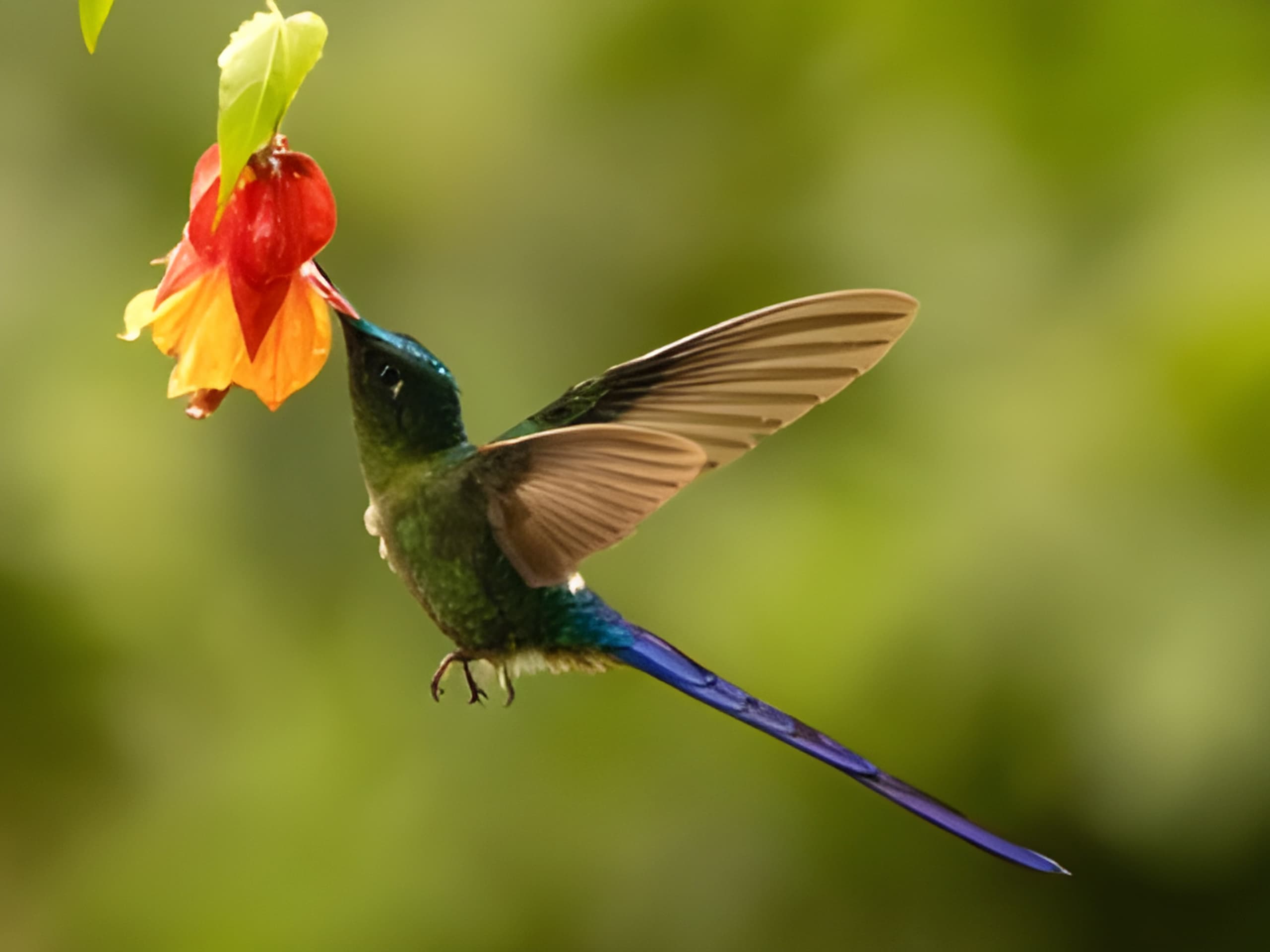
4× enlargement showing reconstructed edge detail, enhanced texture clarity, and elimination of compression artifacts. Ready for large format printing.
Our AI image upscaler transforms a 0.2MP web graphic into a 3.1MP print-ready image while maintaining natural mountain texture and cloud detail.
Related Solutions
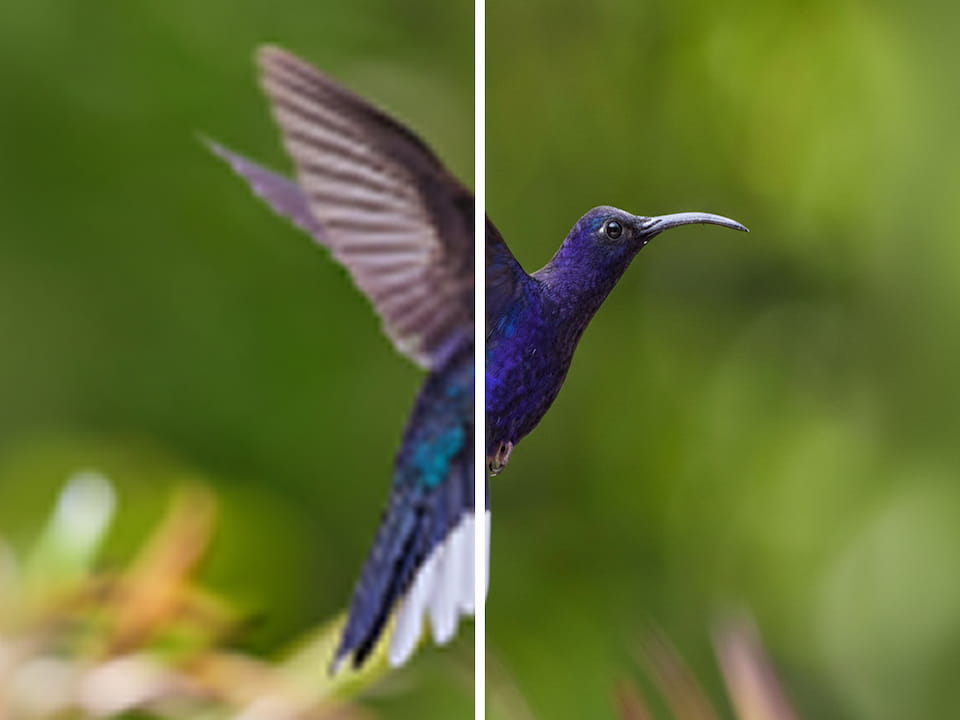
Smart Picture Enhancer
Creative detail reconstruction using AI imagination for pixelated or low-quality source images
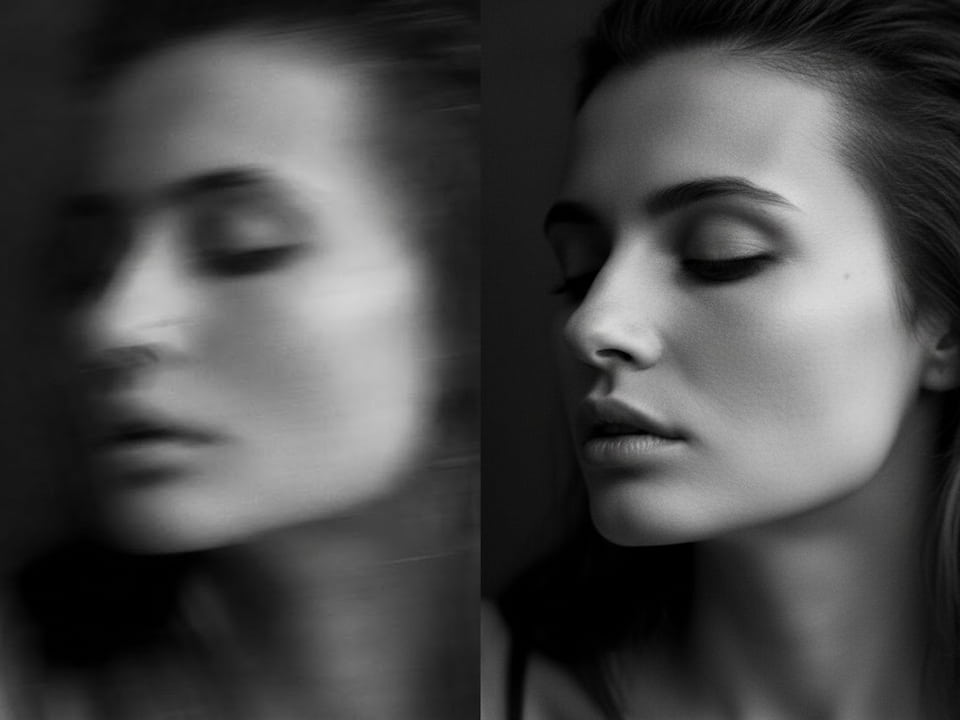
Motion Deblurring
Remove camera shake and focus blur before upscaling for maximum final quality
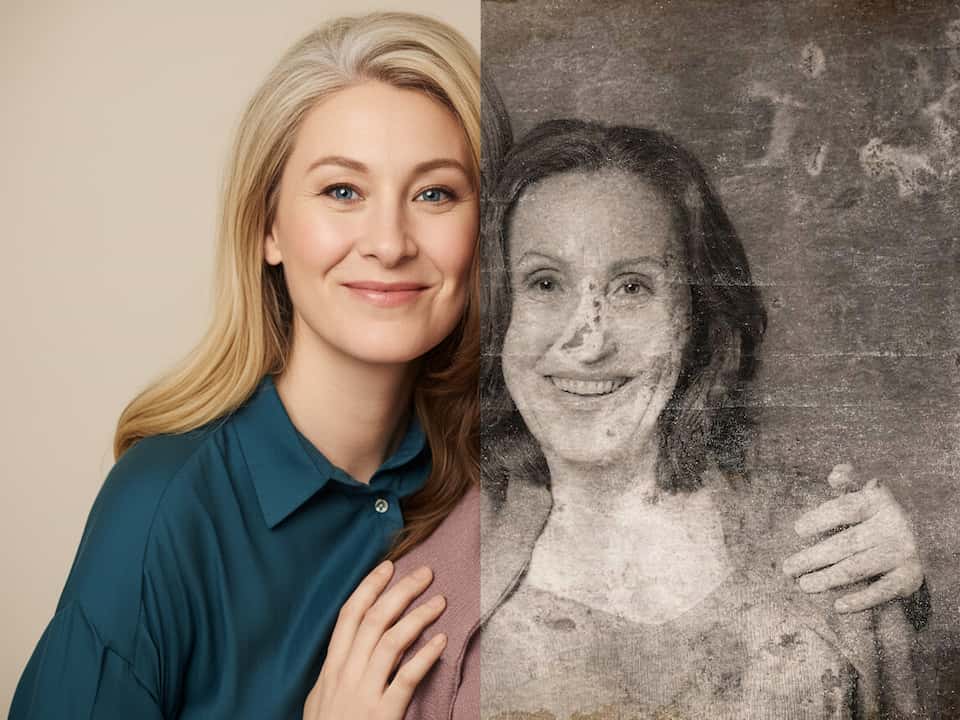
Vintage Photo Repair
Fix scratches, fading, and damage in old photographs prior to enlargement
FAQ
1What's the difference between an AI picture upscaler and a photo enhancer?
An AI upscaler increases image dimensions through intelligent pixel generation (e.g., 1000px → 4000px width), while an enhancer improves existing pixel quality through creative reconstruction without changing size. Our upscaler maintains photographic realism; the enhancer adds imaginative detail. For best workflow: Upscale for size, Enhance for quality.
2Why is the max input 1440p?
You can upload up to 1440p for optimal performance. Larger inputs are automatically downscaled before processing. If you need 4K→8K upscaling, upload a 1080p crop or use our enterprise API.
3Does Face Enhancement work on all photos?
Face Enhancement is optimized for photos where faces occupy 10-60% of the frame. It uses a separate AI pipeline to reconstruct facial features. Disable for landscape, macro, or product photography where face detection might false-trigger on textures or patterns.
4What scale should I choose for printing?
Calculate: (Print width in inches × DPI) ÷ current width in pixels. Example: For a 20"×30" print at 300 DPI, you need 6000×9000 pixels. If your source is 1500×2250 (2MP), use 4× to reach 6000×9000. For 10× enlargements, expect 2-3 minute processing time.
5Why can't I select non-integer scales like 1.5× or 2.5×?
Our AI models are trained and optimized for integer scale factors (2×, 3×, 4×, etc.). Non-integer scaling requires interpolation that degrades quality. For specific output sizes, upscale to the next integer (e.g., 2×) then use standard image editing software to crop or slightly resize.
6Are my uploaded images stored on your servers?
No. Images are processed in memory and automatically deleted after 1 hour or when you close the editor. We do not train our AI on user uploads. For permanent storage or history, use the Save to Cloud feature (requires account).